> ## Documentation Index
> Fetch the complete documentation index at: https://docs.kingdomly.app/llms.txt
> Use this file to discover all available pages before exploring further.
# 1 of 1s
## Creating a 1 of 1s art project
To create a 1 of 1s art project, you can follow these steps or watch the video tutorial below:
Go to the Art Gallery.
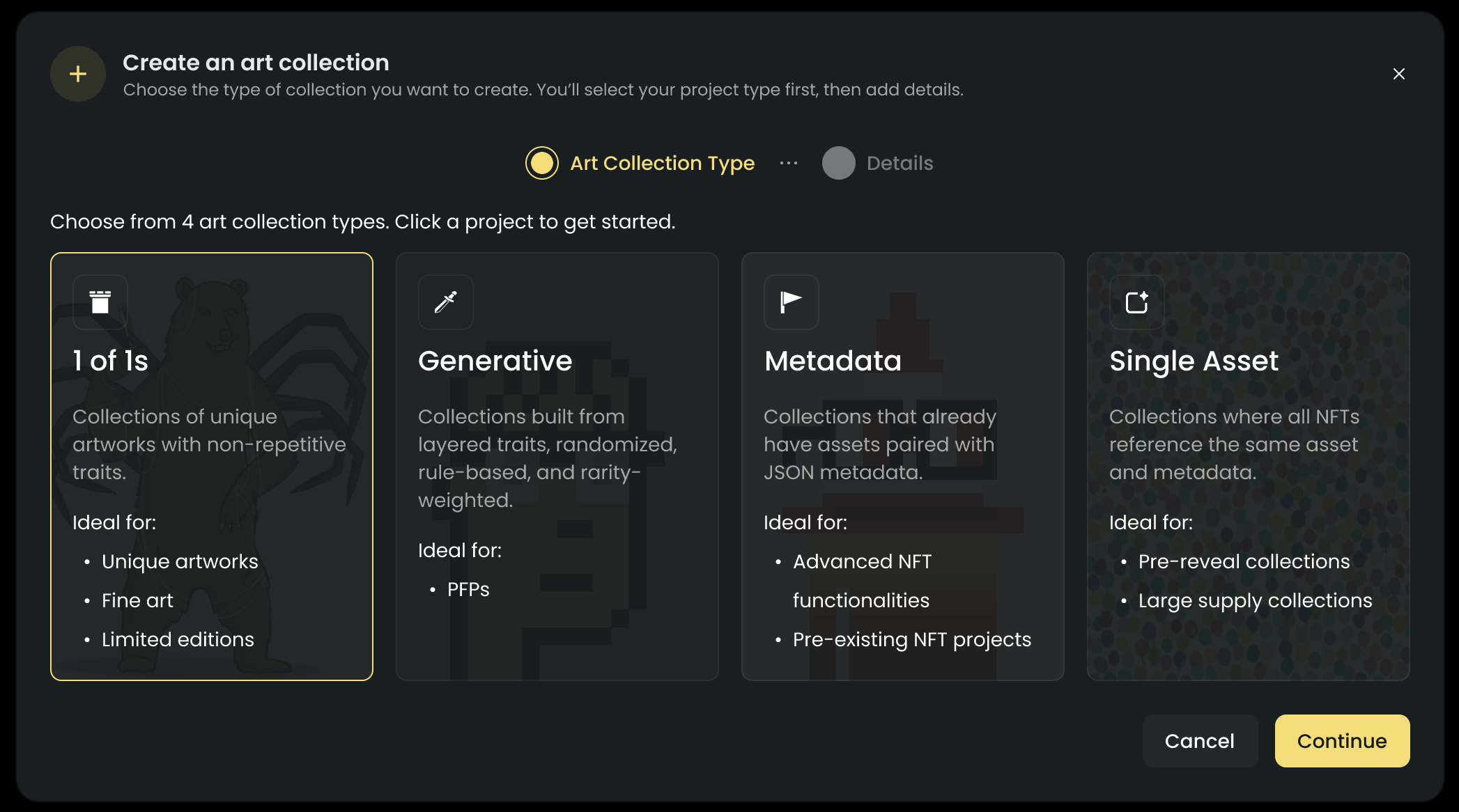
Click on the "Create" button.
Select the "1 of 1s" option.
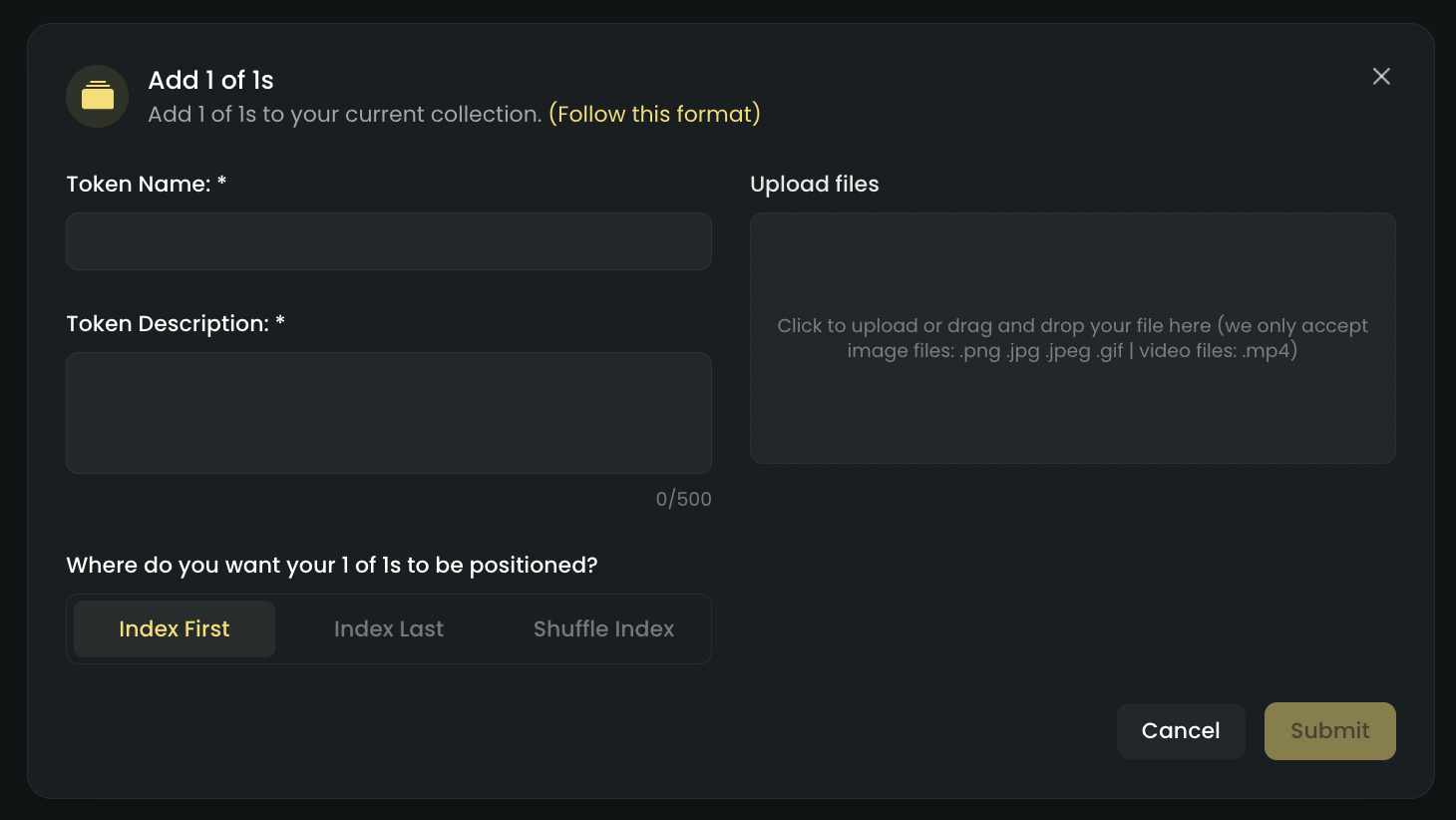
Select "Add 1 of 1s"
Set the name, description, and positioning you want to give to your 1 of 1s assets.
**Note:** Assets uploaded in one go will all have the same name, description, and positioning.
Upload assets and check the preview.
Publish your art project.
You will need to have atleast one asset uploaded to publish your art project
### Video tutorial
### Supported files
At the moment, these are the file types you can use for your 1 of 1s art project.
* Images (PNG, JPEG, GIF)
* Videos (MP4)
File sizes should be less than 10MB.
You may use this 1 of 1s sample zip as a template to get started.
We are working on adding more options soon, so you will have even more flexibility in the future!
### NFT positioning
When adding your 1 of 1s assets, you can choose to position them in the grid.
* **Index first:** This will position your 1 of 1s assets that you are going to upload to be the first in the list.
* **Index last:** This will position your 1 of 1s assets that you are going to upload to be the last in the list.
* **Shuffle index:** This will position your 1 of 1s assets that you are going to upload in a random order.
### Traits handling
To add traits to your 1 of 1s assets, you must set it up while uploading your assets.
You can add as many traits as you want, but you will need to a key and a value for each trait.
If you set the value of a trait to ``, the value will be the name of the file you uploaded.
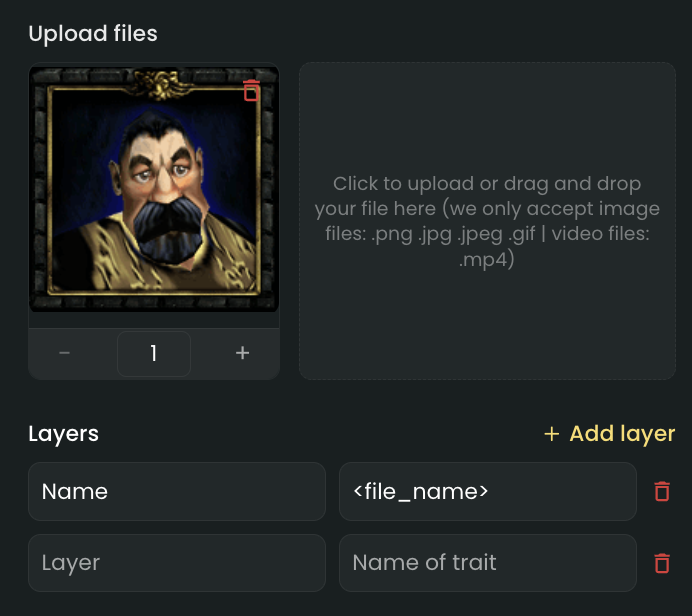 You can add as many traits as you want, but you will need to a key and a value for each trait.