> ## Documentation Index
> Fetch the complete documentation index at: https://docs.kingdomly.app/llms.txt
> Use this file to discover all available pages before exploring further.
# Custom Mint Button Iframe
> Customize your Kingdomly mint embed with your own design preferences
## Overview
This package contains your customized Kingdomly mint embed files with all your design preferences applied.
### Pre-requisites
* You must have a Kingdomly mint project deployed.
* The mint group must be set up and active.
### Iframes zip
To get the iframes zip file, you must be in the mint admin dashboard, navigate to the Iframes section, set your desired CSS styles, and then click on the download button.
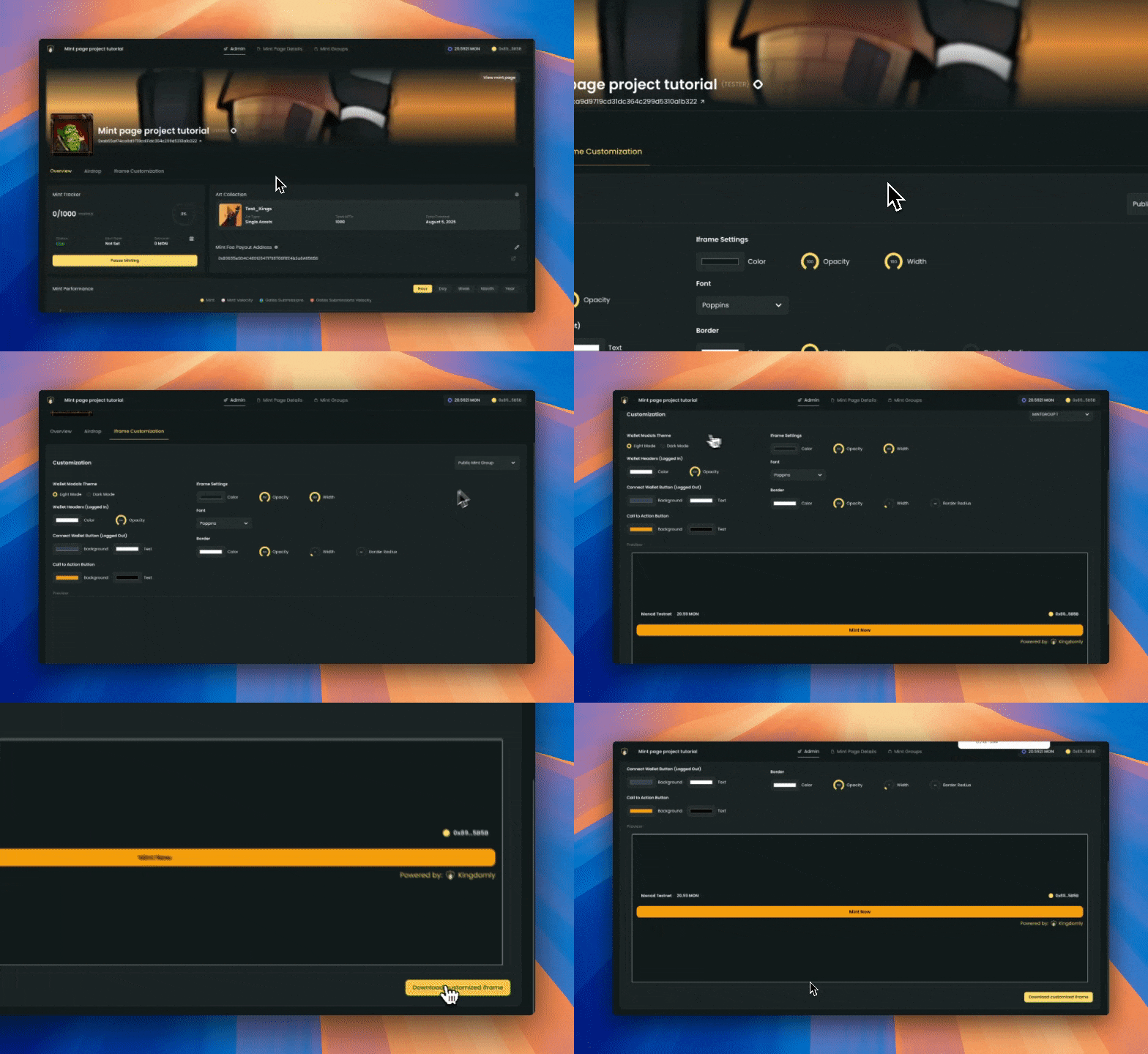 The mint group and mint must be set up and active for the iframes to show properly. Please head to the mint admin dashboard and turn mint live and mint group on.
## Quick Implementation
### For React.js Projects
### Files Included
* `iframe.txt` - Your iframe embed code with auto-populated mint slug
* `InitializeIframe.js` - Customization script that applies your styling
* `README.md` - This instruction file
#### Step 1: Add Script to Public Folder
1. Copy the `InitializeIframe.js` file to your project's `public` folder
2. The file should be accessible at `/InitializeIframe.js` from your website root
#### Step 2: Add useEffect Hook
Wherever you want to display the iframe, add this useEffect hook to load the customization script:
```javascript theme={null}
useEffect(() => {
// Load and execute the customization script
const script = document.createElement('script')
script.src = '/InitializeIframe.js'
script.async = true
document.body.appendChild(script)
return () => {
// Cleanup on unmount
document.body.removeChild(script)
}
}, [])
```
#### Step 3: Add the Iframe
1. Copy the content from `iframe.txt`
2. Paste it into your React component where you want the mint embed to appear
### For HTML Websites
#### Step 1: Add the Iframe to Your Website
1. Copy the content from `iframe.txt`
2. Paste it into your HTML where you want the mint embed to appear
#### Step 2: Include the Customization Script
1. Copy the content from `InitializeIframe.js`
2. Add it to your webpage either:
* **Option A**: Include it in a ``
**Important Implementation Requirements:**
1. **Iframe ID**: The iframe MUST have the ID `kingdomly-mint-iframe` for the customization script to work
2. **Script Placement**: Include the script AFTER the iframe in your HTML
3. **Same Domain**: Both files should be served from the same domain for optimal performance
4. **Background Transparency**: Background transparency doesn't work properly in React.js but works fine in HTML. If transparency doesn't work for you in React, set the background color to match your website's background color, or implement your own transparency solution.
### Modifying Customizations
To change colors or styling after download, edit the `config` object in the InitializeIframe.js file.
### Responsive Design
The embed automatically adjusts to smaller screens. You can modify the iframe width percentage for different breakpoints.
## Troubleshooting
**Customizations Not Applying?**
1. Check browser console for error messages
2. Ensure the iframe ID is exactly `kingdomly-mint-iframe`
3. Verify the script is loaded after the iframe
4. Make sure both iframe and script are on the same page
**Iframe Not Loading?**
1. Check that the mint slug is correct
2. Ensure your website allows iframe embedding
3. Verify the mint is published and accessible
## Mobile Compatibility
The embed is fully responsive and works on all modern browsers and mobile devices.
## You're All Set!
Your customized Kingdomly mint embed is ready to use. Place it anywhere on your website and your visitors can mint directly from your page with your custom styling applied.
For additional support, visit the Kingdomly documentation or contact support.
The mint group and mint must be set up and active for the iframes to show properly. Please head to the mint admin dashboard and turn mint live and mint group on.
## Quick Implementation
### For React.js Projects
### Files Included
* `iframe.txt` - Your iframe embed code with auto-populated mint slug
* `InitializeIframe.js` - Customization script that applies your styling
* `README.md` - This instruction file
#### Step 1: Add Script to Public Folder
1. Copy the `InitializeIframe.js` file to your project's `public` folder
2. The file should be accessible at `/InitializeIframe.js` from your website root
#### Step 2: Add useEffect Hook
Wherever you want to display the iframe, add this useEffect hook to load the customization script:
```javascript theme={null}
useEffect(() => {
// Load and execute the customization script
const script = document.createElement('script')
script.src = '/InitializeIframe.js'
script.async = true
document.body.appendChild(script)
return () => {
// Cleanup on unmount
document.body.removeChild(script)
}
}, [])
```
#### Step 3: Add the Iframe
1. Copy the content from `iframe.txt`
2. Paste it into your React component where you want the mint embed to appear
### For HTML Websites
#### Step 1: Add the Iframe to Your Website
1. Copy the content from `iframe.txt`
2. Paste it into your HTML where you want the mint embed to appear
#### Step 2: Include the Customization Script
1. Copy the content from `InitializeIframe.js`
2. Add it to your webpage either:
* **Option A**: Include it in a ``
**Important Implementation Requirements:**
1. **Iframe ID**: The iframe MUST have the ID `kingdomly-mint-iframe` for the customization script to work
2. **Script Placement**: Include the script AFTER the iframe in your HTML
3. **Same Domain**: Both files should be served from the same domain for optimal performance
4. **Background Transparency**: Background transparency doesn't work properly in React.js but works fine in HTML. If transparency doesn't work for you in React, set the background color to match your website's background color, or implement your own transparency solution.
### Modifying Customizations
To change colors or styling after download, edit the `config` object in the InitializeIframe.js file.
### Responsive Design
The embed automatically adjusts to smaller screens. You can modify the iframe width percentage for different breakpoints.
## Troubleshooting
**Customizations Not Applying?**
1. Check browser console for error messages
2. Ensure the iframe ID is exactly `kingdomly-mint-iframe`
3. Verify the script is loaded after the iframe
4. Make sure both iframe and script are on the same page
**Iframe Not Loading?**
1. Check that the mint slug is correct
2. Ensure your website allows iframe embedding
3. Verify the mint is published and accessible
## Mobile Compatibility
The embed is fully responsive and works on all modern browsers and mobile devices.
## You're All Set!
Your customized Kingdomly mint embed is ready to use. Place it anywhere on your website and your visitors can mint directly from your page with your custom styling applied.
For additional support, visit the Kingdomly documentation or contact support.