> ## Documentation Index
> Fetch the complete documentation index at: https://docs.kingdomly.app/llms.txt
> Use this file to discover all available pages before exploring further.
# Mint Gates
> Build your allowlist with mint gates.
## Overview
Mint gates are access forms that control who can participate in your mint. They give creators the ability to add requirements, tasks, or checks that whitelist applicants must complete before being approved for the whitelist. Think of them as customizable “entry conditions” for your NFT drop.
### Key features
**For Creators / Artists:**
* **Control access**: Decide exactly who can mint by setting eligibility rules.
* **Custom requirements**: Add wallet checks, NFT holdings, Discord membership, or X (Twitter) follows.
* **Collector engagement**: Collect details or require tasks (like social follows) before whitelist approval.
* **Flexible setup**: Gates can be created even before contract deployment.
**For Minters / Users:**
* **Transparent requirements**: See exactly what’s needed to qualify for a whitelist.
* **Easy verification**: Confirm eligibility by connecting a wallet or completing simple tasks.
* **Fair participation**: Gates ensure equal opportunities, reducing spam or bot registrations.
## Setting up a mint gate
Before setting up a Gate, make sure:
* You have a **published Mint Page** (this acts as the base for your collection).
* A **deployed contract is not required** yet, but the Mint Page must exist.
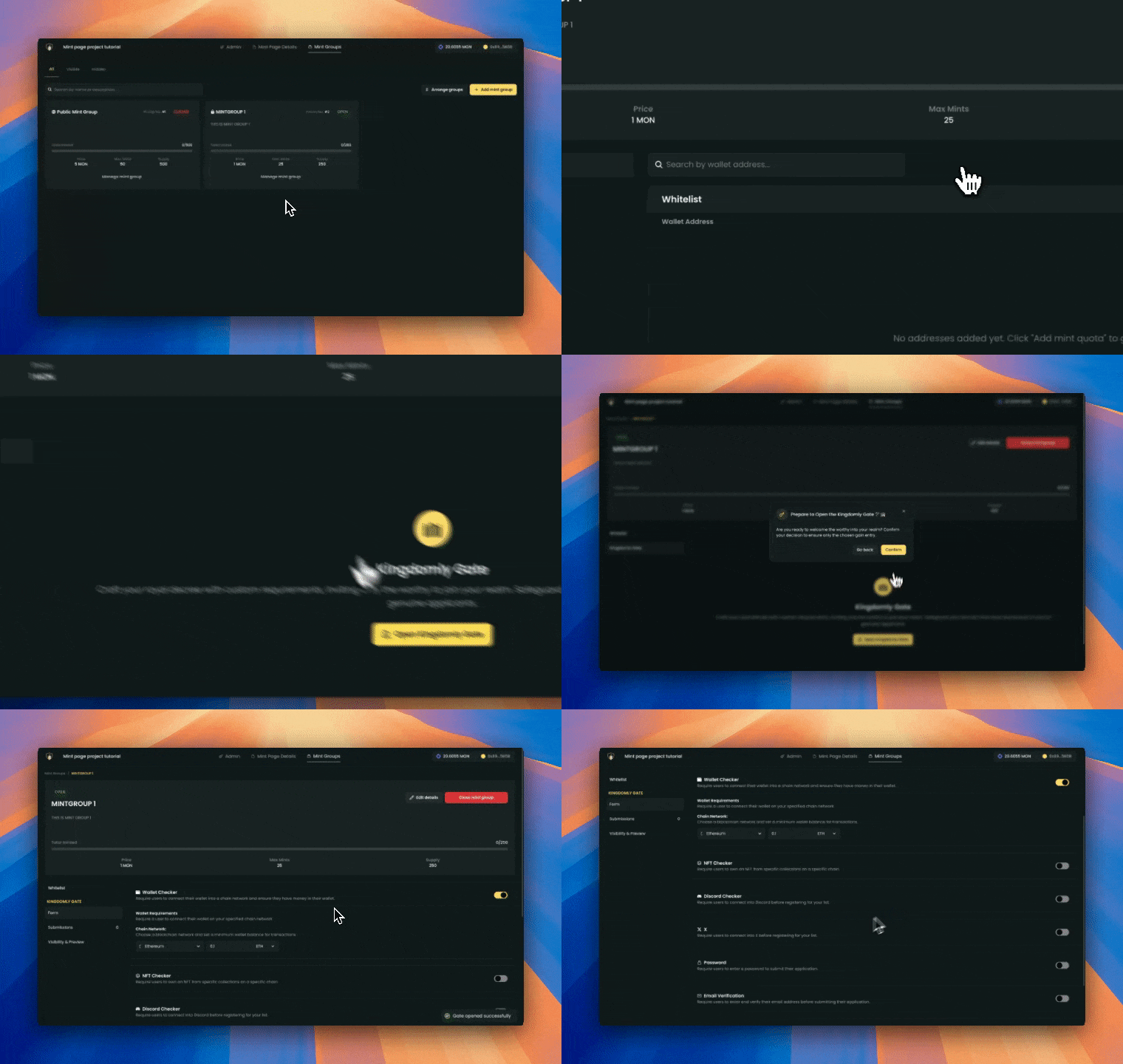 Go to a mint group you have created.
Mint groups are only available for private mint groups.
Click on the "Kingdomly Gates" tab.
Click on the "Open Gate" button.
Opening a gate will not allow you to close it anymore.
After opening the gate, you can setup forms and requriements for the gate.
Don't forget to enable visibility for the gate.
Go to a mint group you have created.
Mint groups are only available for private mint groups.
Click on the "Kingdomly Gates" tab.
Click on the "Open Gate" button.
Opening a gate will not allow you to close it anymore.
After opening the gate, you can setup forms and requriements for the gate.
Don't forget to enable visibility for the gate.
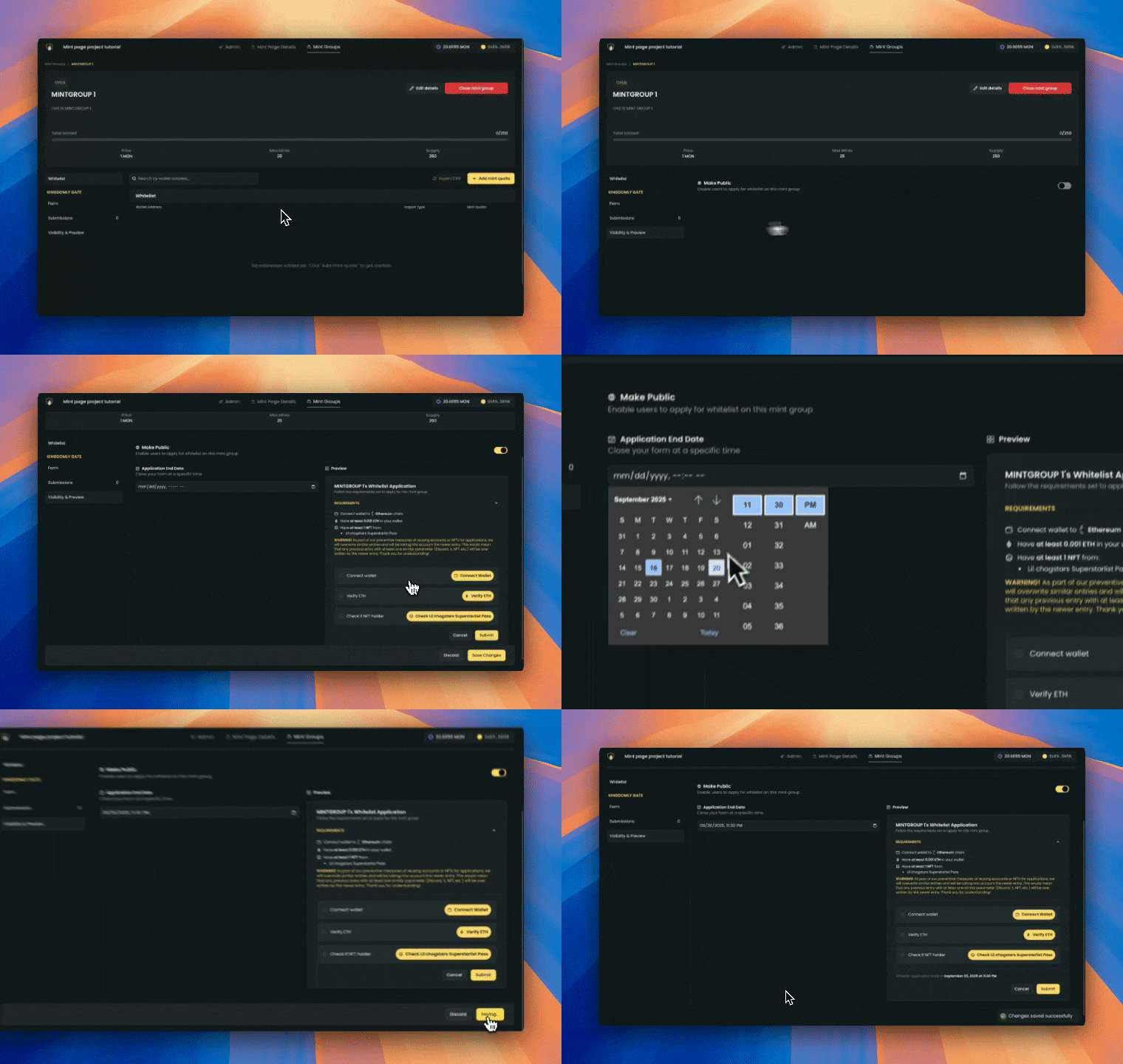 To make your mint project pop out on the mint feed, you will need to set the visibility on and set when the gates will close.
## Types of gates
Kingdomly offers different types of **Gates** that creators can configure to control access to their mint. Each Gate adds a layer of eligibility, ensuring that only qualified collectors can submit applications or be added to the whitelist.
The Wallet Balance Checker ensures that a collector holds at least the minimum balance specified by the creator.
**Creator setup**: Choose from any supported blockchain and set a required token amount.\
**Collector experience**: To submit the form, the connected wallet must meet or exceed the balance threshold.
To make your mint project pop out on the mint feed, you will need to set the visibility on and set when the gates will close.
## Types of gates
Kingdomly offers different types of **Gates** that creators can configure to control access to their mint. Each Gate adds a layer of eligibility, ensuring that only qualified collectors can submit applications or be added to the whitelist.
The Wallet Balance Checker ensures that a collector holds at least the minimum balance specified by the creator.
**Creator setup**: Choose from any supported blockchain and set a required token amount.\
**Collector experience**: To submit the form, the connected wallet must meet or exceed the balance threshold.
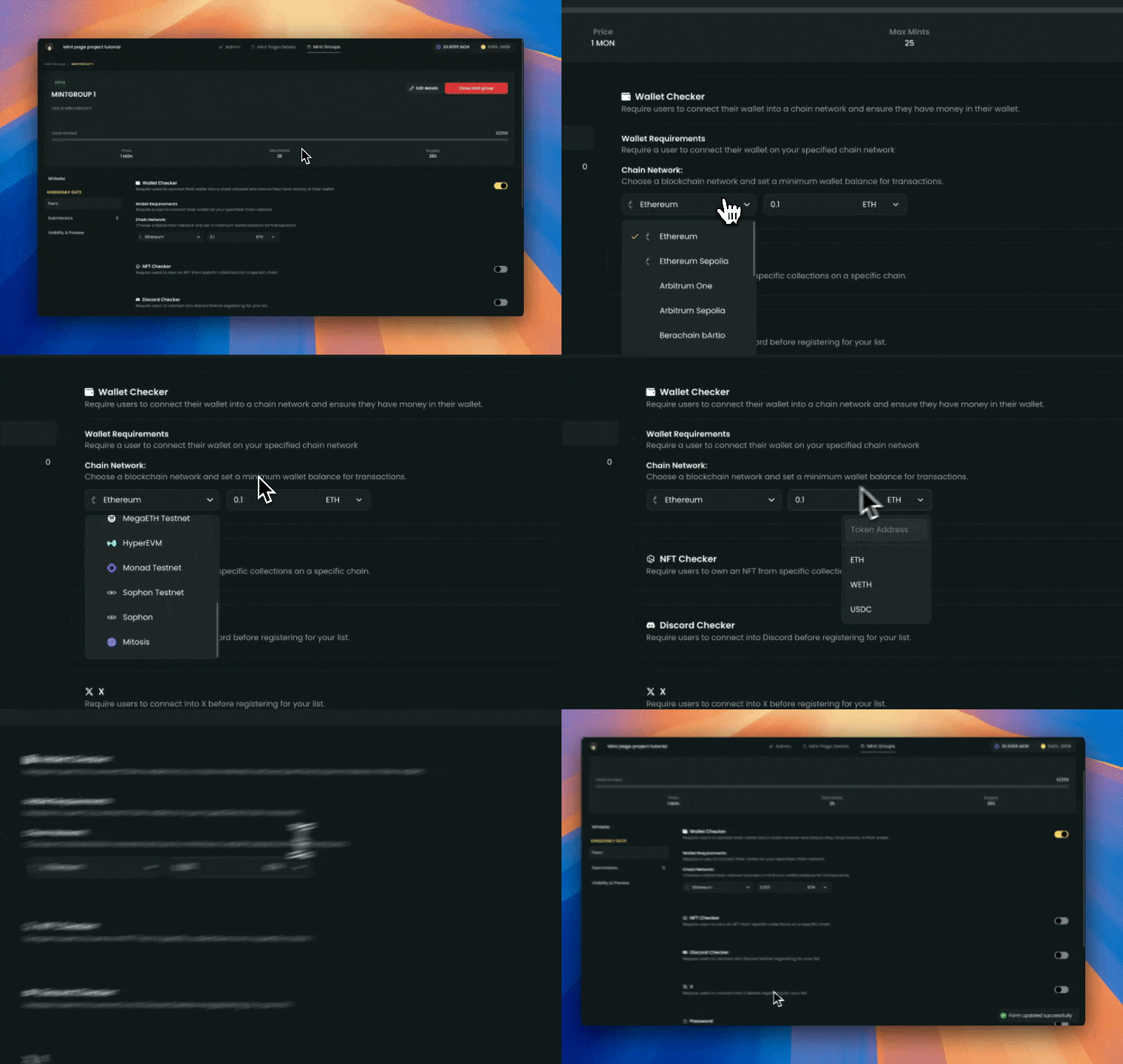 > *Example: Require a minimum of 0.05 ETH on Ethereum, or 50 USDC on Polygon before allowing form submission.*
The NFT Checker verifies that a wallet contains at least one NFT.
**Creator setup**: Select the NFT collection to check against.\
**Collector experience**: Only wallets holding at least one NFT from the chosen collection will be able to submit the Gate form.
> *Example: Require a minimum of 0.05 ETH on Ethereum, or 50 USDC on Polygon before allowing form submission.*
The NFT Checker verifies that a wallet contains at least one NFT.
**Creator setup**: Select the NFT collection to check against.\
**Collector experience**: Only wallets holding at least one NFT from the chosen collection will be able to submit the Gate form.
 > *Example: Require whitelist applicants to hold at least one “Genesis Pass” NFT before joining the whitelist.*
The Discord Checker confirms community membership by integrating with the **Kingdomly Bot**.
**Creator setup**: Add the Kingdomly Bot to a Discord server and specify the required role.\
**Collector experience**: The collector must connect their Discord account and hold the correct role to complete the Gate.
> *Example: Require whitelist applicants to hold at least one “Genesis Pass” NFT before joining the whitelist.*
The Discord Checker confirms community membership by integrating with the **Kingdomly Bot**.
**Creator setup**: Add the Kingdomly Bot to a Discord server and specify the required role.\
**Collector experience**: The collector must connect their Discord account and hold the correct role to complete the Gate.
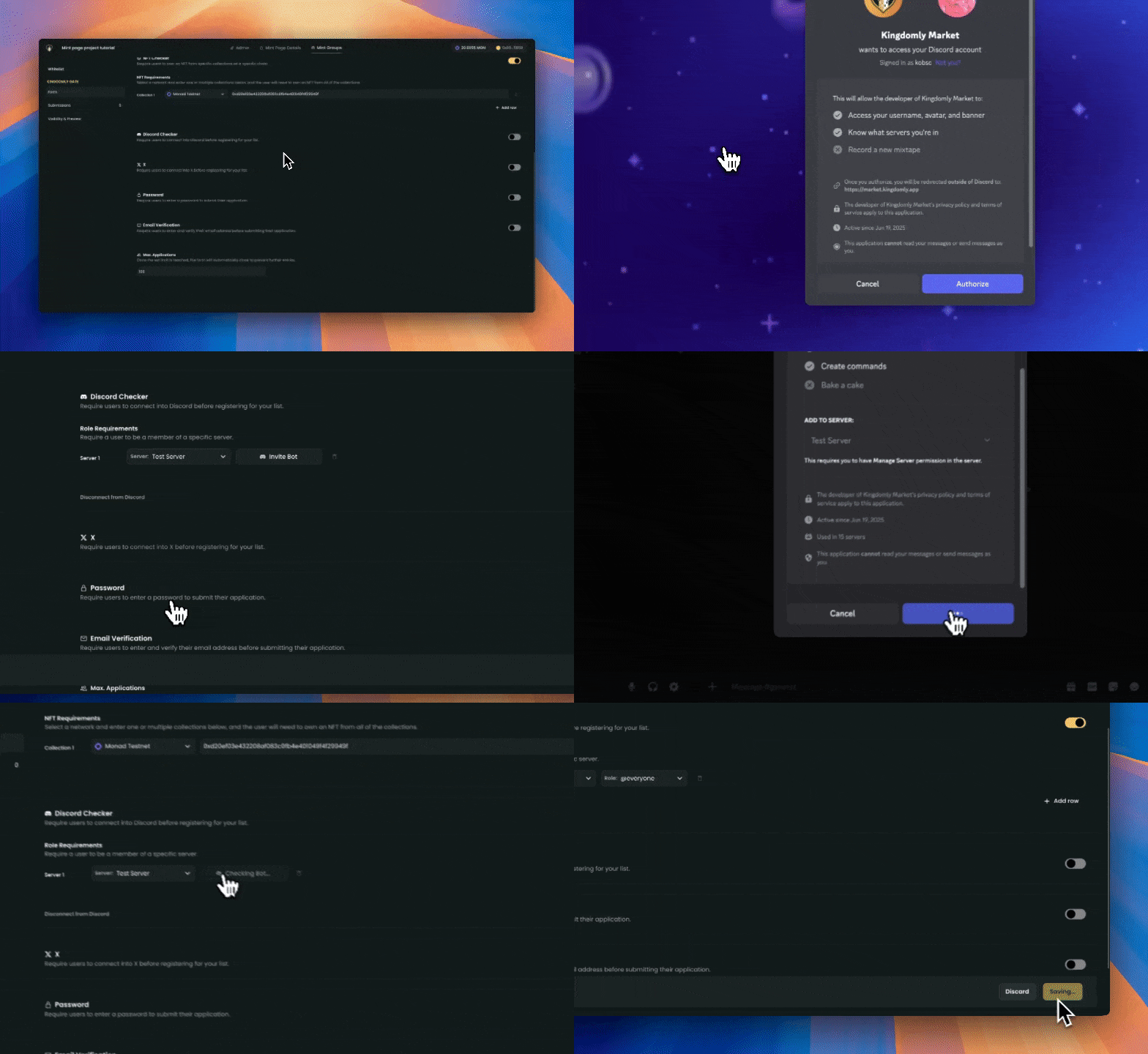 > *Example: Require the “OG Member” role in Discord before mint eligibility.*
The X Checker ensures that whitelist applicants follow a specified Twitter (X) account.
**Creator setup**: Enter the account handle directly in the dashboard.\
**Collector experience**: The Gate verifies the follow before allowing submission.
This feature doesnt enforce the follow checking, its only a soft check by making the minter opens the X page.
> *Example: Require whitelist applicants to follow **@KingdomlyApp** on X before submitting the application.*
The Password Gate adds a simple access control layer.
**Creator setup**: Define a password in the dashboard.\
**Collector experience**: Users must enter the correct password before submitting the application.
> *Example: Share a password with VIP members to allow exclusive access.*
The Email Verification Gate confirms a collector’s identity via email.
**Creator setup**: Enable email verification for the Gate.\
**Collector experience**: Whitelist applicants must enter an email address and verify it before completing their submission.
> *Example: Require verified email addresses to help prevent spam or bot registrations.*
The Max Applications Gate controls the total number of submissions for a form.
**Creator setup**: Enter a submission limit in the dashboard.\
**Collector experience**: Once the maximum number of applications is reached, the form automatically closes.
> *Example: Only the first 500 verified applications will be accepted.*
## Whitelist applicants
Whitelist applicants are the users who have been approved for the whitelist. They are not yet added in the contract allowlist yet as you will be needing to set their mint quota in the contract first.
**Managing whitelist applicants**
You can go to submissions tab to see all the whitelist applicants. This is where you will see all the whitelist applicants. You can choose to accept or reject these applicants and even export them in your liking.
> *Example: Require the “OG Member” role in Discord before mint eligibility.*
The X Checker ensures that whitelist applicants follow a specified Twitter (X) account.
**Creator setup**: Enter the account handle directly in the dashboard.\
**Collector experience**: The Gate verifies the follow before allowing submission.
This feature doesnt enforce the follow checking, its only a soft check by making the minter opens the X page.
> *Example: Require whitelist applicants to follow **@KingdomlyApp** on X before submitting the application.*
The Password Gate adds a simple access control layer.
**Creator setup**: Define a password in the dashboard.\
**Collector experience**: Users must enter the correct password before submitting the application.
> *Example: Share a password with VIP members to allow exclusive access.*
The Email Verification Gate confirms a collector’s identity via email.
**Creator setup**: Enable email verification for the Gate.\
**Collector experience**: Whitelist applicants must enter an email address and verify it before completing their submission.
> *Example: Require verified email addresses to help prevent spam or bot registrations.*
The Max Applications Gate controls the total number of submissions for a form.
**Creator setup**: Enter a submission limit in the dashboard.\
**Collector experience**: Once the maximum number of applications is reached, the form automatically closes.
> *Example: Only the first 500 verified applications will be accepted.*
## Whitelist applicants
Whitelist applicants are the users who have been approved for the whitelist. They are not yet added in the contract allowlist yet as you will be needing to set their mint quota in the contract first.
**Managing whitelist applicants**
You can go to submissions tab to see all the whitelist applicants. This is where you will see all the whitelist applicants. You can choose to accept or reject these applicants and even export them in your liking.
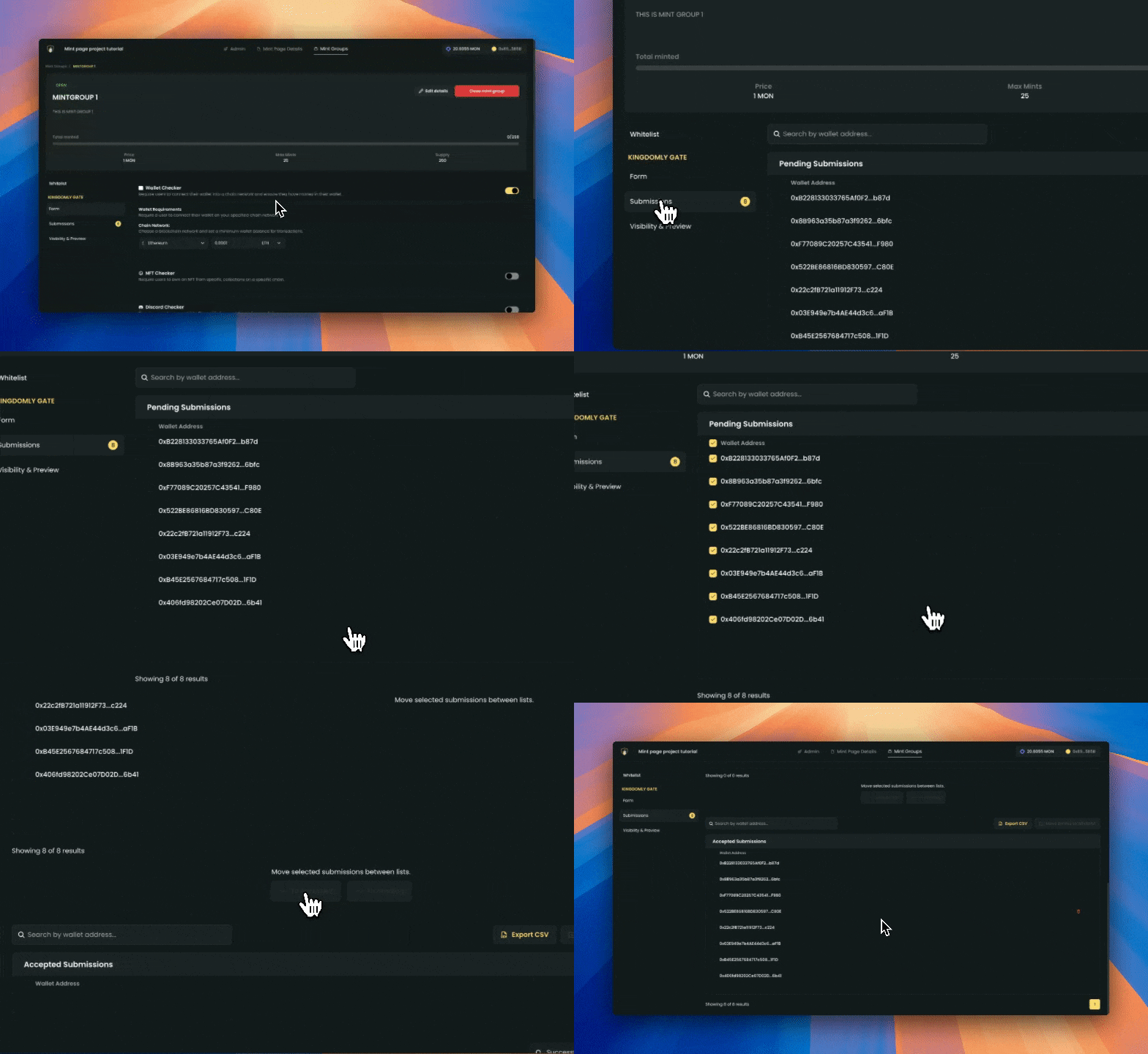 Note that the columns will vary depending on the gate you opened. For example, if you opened a gate that requires the X Follow Checker, you will see the X tags of the applicants and you can export them in your liking.
**Adding accepted applicants to the contract allowlist**
Pre-requisites:
* You must have a deployed contract.
You can add accepted applicants to the contract allowlist by moving accepted submissions to the whitelist. You are also able to move applicants back to submissions tab if you want to reject them.
Note that the columns will vary depending on the gate you opened. For example, if you opened a gate that requires the X Follow Checker, you will see the X tags of the applicants and you can export them in your liking.
**Adding accepted applicants to the contract allowlist**
Pre-requisites:
* You must have a deployed contract.
You can add accepted applicants to the contract allowlist by moving accepted submissions to the whitelist. You are also able to move applicants back to submissions tab if you want to reject them.
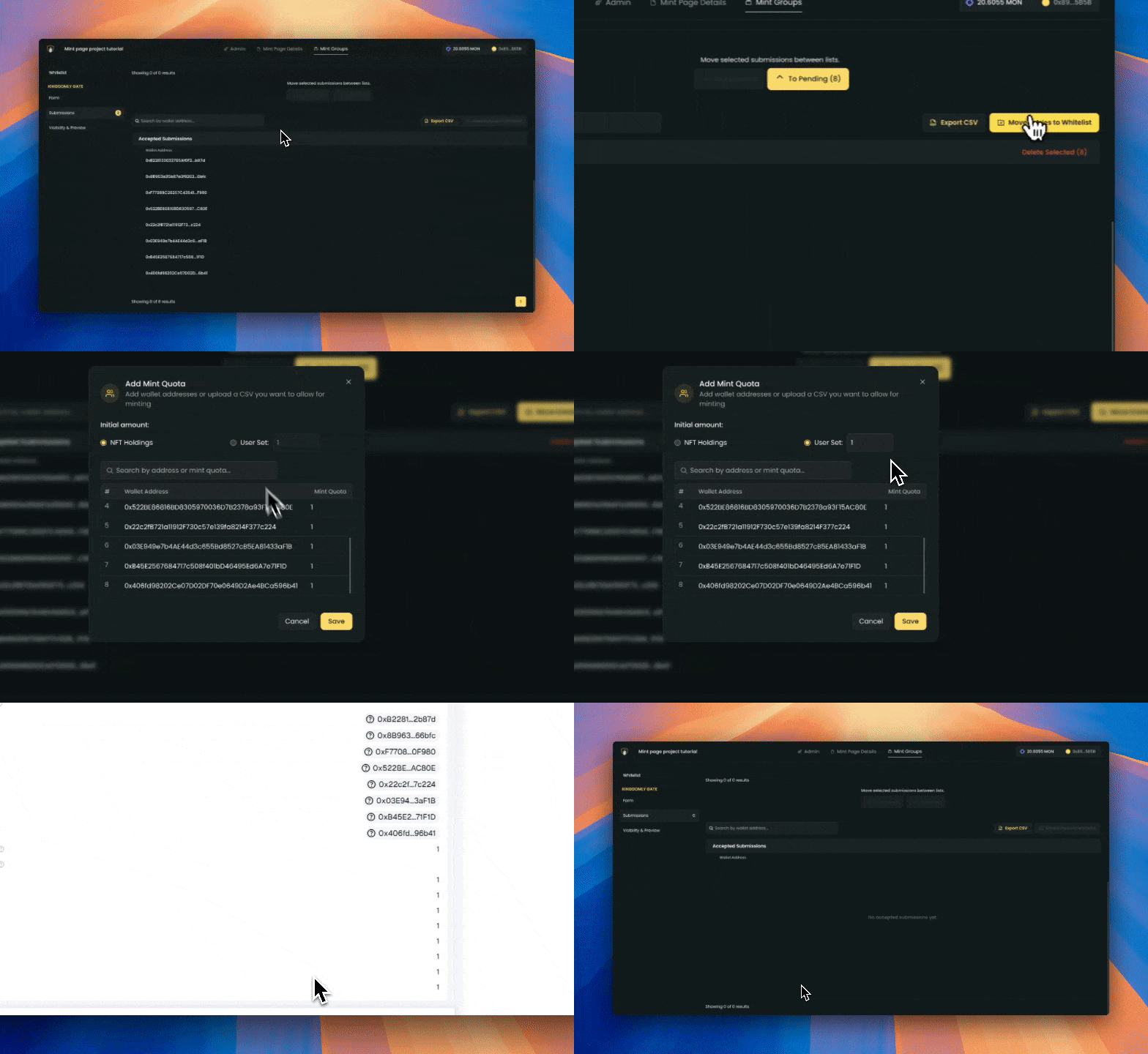 After moving the applicants to the whitelist, all accepted applicants will be added to the contract allowlist and will be removed in this table. To manage whitelists you can go to the mintgroup's whitelist management tab.